Powered By Blogger

Monday, 5 December 2011

within 13 steps you can design a Sharepoint Site using Visual Studio 2010

Now it is time to create a generic branding solution using the SharePoint development tools in Visual Studio 2010.

    Lets we do step by step for designing a Site in sharepoint 2010.

1.You can start by creating an Empty SharePoint Project named Branding101


2.When you create the new SharePoint project, the SharePoint Customization Wizard prompts you to provide a URL to a local SharePoint test site and to select either Deploy as a sandboxed solution or Deploy as a farm solution for testing. Be sure to select Deploy as a sandboxed solution,


Creating a Custom Master Page:
3. In Visual Studio 2010, in Solution Explorer, right-click the Branding101 project node. On the Project menu, select Add and then New Item.
In the Add New Item dialog box, create a new Module project item named MasterPageGallery

4.After you create the new Module, it contains an element manifest named Elements.xml and a sample element file named Sample.txt. Right-click the Sample.txt file, and rename it Branding101.master


5.The next step is to modify the contents of the Branding101.master template file with the starting point for a custom master page. A popular technique is to copy and paste the text from the standard SharePoint 2010 master page named v4.master. Use Windows Explorer to locate the v4.master template file, which exists at the following path.
E:\Program Files\Common Files\Microsoft Shared\Web Server Extensions\14\TEMPLATE\GLOBAL\v4.master
 
When you locate the v4.master template file, open it and copy its contents to the Clipboard. Next, open the Branding101.master template file in your project and delete all the contents in the file. Paste the contents from v4.master inside Branding101.master, and then save your changes. After you successfully copy the content from v4.master, close this template file without saving any changes.
Currently, your custom master page has the same content as the standard SharePoint 2010 master page, v4.master.
  You can do this by locating the opening body tag in Branding101.master and adding the following element just below it.

<div style="background-color:yellow">Branding101.master</div>
 
6.Now that you have created your custom master page, you must modify the 
Elements.xml file inside the MasterPageGallery module to ensure that it 
is correctly deployed to the master page gallery during Feature 
activation. Open the Elements.xml file and update the Module 
element and its inner File element with the following XML content. 

7.At this point, you have finished your initial work on the 
MasterPageGallery module. Now you should turn your attention to the 
Feature that will be used to deploy this module. Notice that when you 
added the module to the Branding101 project, the 
SharePoint development tools in Visual Studio 2010 automatically create a
 new Feature named Feature1. Locate this Feature in  
Solution Explorer, right-click it and rename it to Main.
 
 
8.After you rename the Feature, double-click the Feature node so that you can
see the Feature in the Feature Designer. Change the Title of the Feature
to something more appropriate, such as Branding 101 Sample Feature,
as shown in Figure 5. It is also important to change the Scope of
the Feature from Web to Site so that it activates at the level of the site 
collection and not the level of the site. 
 
 Creating Custom CSS Files
8.
In Solution Explorer, right-click the Branding101 project node, and on the Project menu, select Add and then New Item.
In the Add New Item dialog box, create a new Module project item named Style Library, as shown in
9.The new Module project item initially contains an element manifest named Elements.xml and a sample element file named Sample.txt. Right-click Sample.txt and rename the file Styles.css.
Next, right-click the Style Library module node, and on the Project menu, select Add and then New Folder to create a new child folder in the Style Library module. Name the folder Branding101.
After you create this folder, you can move the styles.css file by dragging it to the folder in Solution Explorer.


Adding Feature Receiver:

10;In Solution Explorer, right-click the Main Feature node, and then select Add Event Receiver to add a Feature receiver class.
  Inside the Feature receiver class, you must override and implement two methods named FeatureActivated and FeatureDeactivating. Begin your coding by cleaning up and restructuring the source file for your Feature receiver class to look like the following example.


Thursday, 1 December 2011

centered SharePoint 2010 Site

I have followed a steps to get a centered Sharepoint site as of Figure 1.


Its takes just two minutes to center a sharepoint site .I followed below link,So begineers who like to explore follow this.

Happy Sharepoint....


Creating a Approval WorkFlow in Sharepoint 2010

Workflows (sequences of connected steps) are an everyday occurrence in most offices and as such, SharePoint 2010 provides support for workflows. In this article we review how to add an approval workflow to a SharePoint Document Library.

The approval workflow is one of the few built-in workflows that come with the SharePoint 2010. Basically it allows you to receive an approval for a document from your superiors.
If you need a custom workflow you can create your own with SharePoint Designer or Microsoft Visio and import it into SharePoint Designer or program it inside Microsoft Visual Studio. How to do this is outside of the scope of the current article.

The sample workflow we are going to build will be triggered upon uploading a new document to a custom document library. Then the workflow will assign a task to a predefined user to approve the uploaded document. The status of the document – approved/rejected will be displayed in one of the columns of the library. And we will do everything without writing a single line of code!

The first step is  to create the Document library where the approval workflow will be enabled. To do this, select the “Site Actions” menu and then choose “New Document Library” as shown in Figure 1.

Create New Document Library - Site Actions menu
Figure 1 Create New Document Library – Site Actions menu

Next, the dialog for creating a new Document library will appear (Figure 2). Fill in “Purchase Requests” for the “Name” of the new library and optionally provide description. Select the options for “Navigation” and “Document Version History” – whatever fits to your requirements is fine as they are irrelevant to our example. For “Document template”,  select “Microsoft Word document”. You can choose whatever you wish but this current example we will use Word documents.

Create New Document Library
Figure 2 Create New Document Library

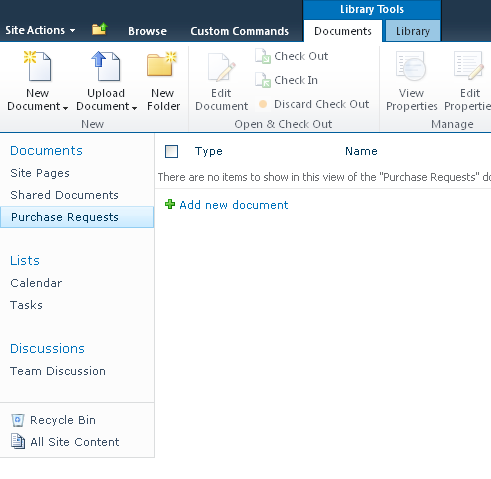
After you have filled in everything, click Create and the new document library will be created as shown in 

Figure 3
Purchase Request Library is created
Figure 3 Purchase Request Library is created

Now it is time to enable the Approval workflow for our newly created library. To do so select “Library” from the “Library tools” and then select “Workflow Settings” as displayed in Figure 4.
Workflow Settings button
Figure 4 Workflow Settings button

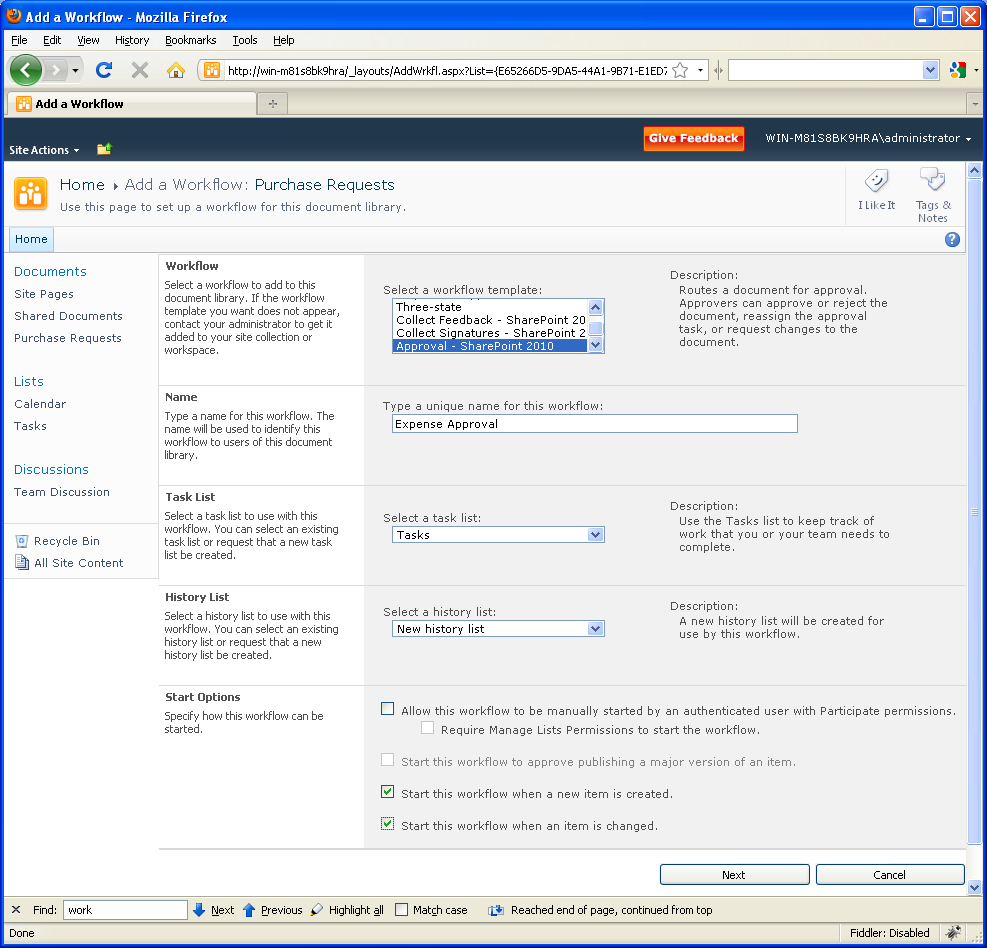
This will start the wizard shown in Figure 5 which will help you to enable the approval workflow for the current document library. The first thing to do is select the workflow template from the list box in the “Workflow” section. You can choose from several out-of-the-box workflow templates but we will choose “Approval – SharePoint 2010”. Then we provide a name for our workflow:  “Expense approval”.

The task list drop down  allows us to define a list where a new task will be assigned to the corresponding user. Let’s use the default value – “Tasks”. Later we will configure the users responsible for approving the documents. Next, we define the history list for the workflow. History lists are special logs which monitor the execution of the workflow.

At each step of the workflow, messages at written to the log upon execution of the step. Again, accept the default value, as shown in Figure 5. Now, configure how the workflow is started. Generally, two approaches are possible -  manual and automatic. We will use the latter and will deselect the check boxes for manual starting and we will select the checkboxes for automatic starting.

After pressing the next button, we will navigate to the second step of the configuration wizard – Figure 6.
Add workflow – Step 1

Figure 5 Add workflow – Step 1
Add workflow – Step 2
Figure 6 Add Workflow – Step 2

Now, we need to configure the users responsible for approving the content (Word files in this case). We will do it by clicking the ‘open book’ icon and select it from a list. In our example the approver will be John. You can also specify user groups, not just single users. If there are multiple users selected, you can choose to approve one at a time or all at a time.

We also need to specify a Notification message. This message will be used to remind the user assigned as an approver, the action he is supposed to take. Something like “Please approve” will be appropriate in this case.
The other fields are not necessary to complete the workflow. If you are curious about these, you can read the detailed explanation below each field.

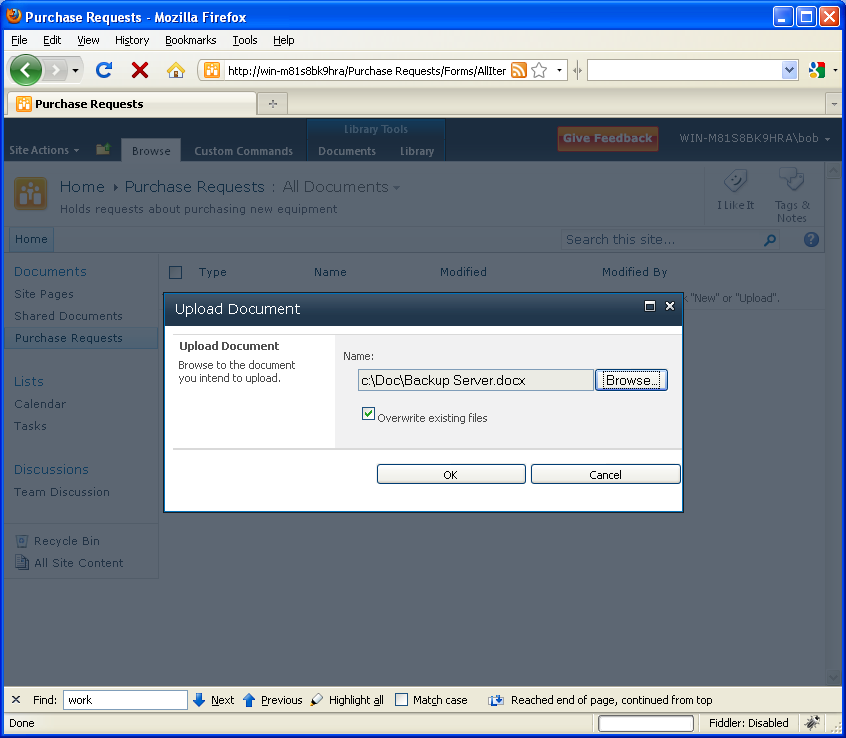
After pressing the Save button our workflow is ready and it is time to see how it works. To do this, we will upload a new Word document to the document library we have created earlier. Navigate to the “Purchase Requests” via the menu on the left and select “Add new document”. A new popup dialog will appear (Figure 7) where we can select a Microsoft Word document from the local hard drive.

Click OK and a popup dialog will appear, where additional properties can be assigned to the newly uploaded file. For example,  you can associate some keywords with it.
Upload Document
Figure 7 Upload Document

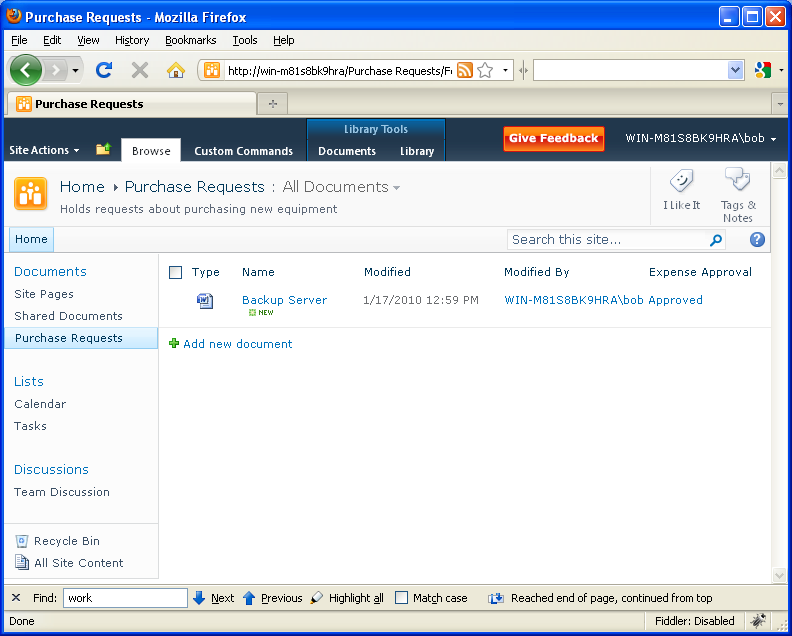
As you can see from Figure 8 our file has been uploaded to the document library and the last column shows that the Expense approval workflow is in progress. This means that a new task has been assigned to John (the user we specified early as an approver). If we open the Tasks List (Figure 9), we will note that there is a new task with the title “Please approve Backup Server” assigned to John. If SharePoint is configured to use the SMTP server, John will receive an email that informs him of the new task.

Newly uploaded document has started the workflow
Figure 8 Newly uploaded document that has started the workflow

Approval Task Assigned to John
Figure 9 Approval Task Assigned to John

Now, let’s suppose we have logged in as John. After opening the “Please approve the Backup Server” task a new popup window will appear – Figure 10. We can approve or reject the document by clicking Approve/Reject . In addition, we have the option to assign the task for approving the document to another user. For this demo we will approve the document by clicking Approve.
Document Approval Dialog
Figure 10 Document Approval Dialog

Now, after John has approved our document, we can go back to the “Purchase Requests” document library and check the status of our document. You will notice that the last column now shows “Approved”.
Document is approved
Figure 11 Document is approved

In this article we have reviewed how to configure an approval workflow for a custom document library. The workflow was started automatically after a new document was uploaded. If you need a more sophisticated workflow, you will need to use the SharePoint Designer or Visual Studio to create one. The last approach is far more complicated and requires programming skills.

   That's It......

Wednesday, 30 November 2011

Creating a Custom Field Item

To Create Custom Field Item:

Display the New Project dialog box by pointing to New on the File menu, and then clicking New Project.
Expand the SharePoint node under either Visual C# or Visual Basic, and then click 2010.

Click Empty SharePoint Project in the Templates pane, change the name of the project to CustomField1, and then click OK.

The SharePoint Customization Wizard appears. The Empty Project template is used for custom field items because there is no template for them.
  1. On the Specify the site and security level for debugging page, enter the URL for the SharePoint server site to which you want to add the new custom field item, or use the default location (http://<system name>/).


     In the What is the trust level for this SharePoint solution? section, use the default value Deploy as a sandboxed solution.

    Then Click Finish.


    Add an Empty Element project item to the project. To do this, click the field's project node (CustomField1) in Solution Explorer and then click Add New Item on the Project menu.
     
    1. Expand the SharePoint node under either Visual C# or Visual Basic, and then click 2010.
    2. In the Templates pane, select Empty Element, keep the default name EmptyElement1, and then click Add.
      1. In the Elements.xml file under EmptyElement1, add the following after the <Elements> tag:

         2..This adds a field that is named Patient Name.
    Press F5 to run and deploy the project to SharePoint.If you get a message that script debugging is disabled, click Yes to continue debugging.

    At the top of the SharePoint Web page, click the Site Actions button and then click Site Settings.

    Under the Galleries section of the Site Settings page, click the Site columns link. 
  2.  In the Site Column Gallery page, scroll the page down to the Custom Columns heading and note the new field item added, Patient Name.
  3.  

  4. Close the browser.


Wednesday, 23 November 2011

Creating Event Receiver in Sharepoint 2010

In this blog I am going to demonstrate how to create a simple Item added event receiver for a custom list in SharePoint 2010

1.Start Visual Studio 2010. and create a new Project.
2. In project types select Event Receiver and give it a name (Select .net framework 3.5).
3.Next, In the SharePoint Customization Wizard, choose Deploy as a sandboxed solution and specify the site url
4. Next, in Event Receiver Settings dialog select the “List Item Events” as a type of event receiver and “Custom List” in the Item source drop down. Select “An Item was Added”then click next.
5.Click Finish.
6. Next, In order to Change the Title of an item to the current Data and Time when it is added to a custom list.

 7.Write below code.Press F5 it will start to deploy.
Then check whether it gets activated in Site Actions>site settings>gallery>solutions>Your Project name


 8.Create a custom List in that custom List add a new item and refresh the page and view Code works.


Tuesday, 22 November 2011

The vssphost4.exe process was unable to start due to an unknown error or problem

Title: The vssphost4.exe process was unable to start due to an unknown error or problem.
Cause:
  In the SharePoint customization wizard give the local debugging url and choose the option Deploy as a Sandboxed solution then click Next.
 That time a Popup comes and shows the Following error( The vssphost4.exe process was unable to start due to an unknown error or problem.)
Solution:
  Check whether under the same local debugging url so other visual studio project is running or not.
For me it is running so i just restarted my visual studio.Then later on that error got disappered.


Error occurred in deployment step 'Retract Solution': Cannot start service SPUserCodeV4 on computer

Title: SharePoint 2010 Error occurred in deployment step 'Retract Solution': Cannot start service SPUserCodeV4 on computer

Details: Building Sandboxed Solutions on SharePoint 2010 using Visual Studio 2010 Beta and encountered the error? Then make sure that the service Microsoft SharePoint Foundation User Code Service ( CA > System Settings > Services on Server ) is Started.

Thursday, 13 October 2011

Overview Of Microsoft Office 365


Office desktop software, as a cloud service for organizations of all sizes.
Microsoft’s first major cloud-based application suite. The Office 365 suite consists of four separate applications:
             Microsoft Office Professional Plus,
             Microsoft Exchange Online,
             Microsoft SharePoint Online,
             Microsoft Lync Online.
    Thus brought together to form one bundled offering, they do make a rather compelling cloud-based service.
Office 365 allows people to collaborate and communicate at the same time, no matter where they are, through instant messaging and virtual meetings as well as enabling people to work collaboratively on files and documents at the same time using the Office 365 applications.
These include         1. word processing,
                             2. spreadsheet  presentations
                             3. Email, calendar, contacts, instant messaging, web meetings, videoconferencing, intranet and website creation tools.

Access email, calendars, and contacts across PCs, the web and mobile phones.
Work from virtually anywhere
                 Work from almost anywhere and get automatically updated email, calendar, and contacts on the devices you use most, including PCs, Macintosh computers, iPhone, Android phones, Symbian phones, BlackBerry smartphones**, Windows Mobile, and Windows Phones*.

Easy to manage email

                          Get professional, easy-to-manage email. Office 365 provides each user with a 25-gigabyte (GB) mailbox and lets them send email messages up to 25 megabytes (MB). Connect with Microsoft Outlook 2010 or Outlook 2007 and use all of the rich Outlook functionality you already know and use, whether you are connected to the Internet at home or in the office or you are working offline.

Simplify scheduling

                       Easily schedule meetings by sharing calendars and viewing them 
side by side, so you can see your colleagues’ availability and suggested meeting times from your calendar. Access your email, calendar, and contacts from nearly any web browser while you keep the rich, familiar Outlook experience with Microsoft Outlook Web Apps.

Business-class security

                   Help protect your organization from spam and viruses with Microsoft Forefront Online Protection for Exchange, which includes multiple filters and virus-scanning engines.

Office 365 Plans

                 Office 365 is designed to meet the needs of organizations of all sizes with plans for independent professionals to small, midsize and large businesses and for government agencies to educational institutions — helping them to save time and money and free up valued resources.

Office 365 for Small Businesses

                  This is an easy-to-use set of Web-enabled tools for small businesses, independent consultants and professionals looking for business-class productivity services. It works with the tools people know and use today. Benefits include the following:

• Access e-mail, important documents, contacts and calendar on nearly any device, including PC, Mac, Windows Phone, iPhone, Android and BlackBerry
• Office Web Apps for viewing, editing and sharing documents
• Large 25GB mailboxes for each user and the ability to send attachments up to 25 MB
• Easy-to-use design tools to build a professional-looking website quickly
• Password-protected team sites for collaborating on documents and information
• Industry-leading, always-up-to-date antivirus and anti-spam solutions
• Integrated IM, presence and online meetings with audio and videoconferencing and multiparty data sharing
• Financially backed, guaranteed 99.9 percent service uptime
• 24x7 moderated community-based support

Example:
                Organizations with one to 25 users (maximum 50) that have minimal IT resources. Organizations that require Active Directory Federation Services, archiving for legal compliance, BlackBerry Enterprise Server or phone support should consider Office 365 for enterprises.
Price: $6/5.25 euros/600 yen per user, per month

It includes the following:

• Office Web Apps Web productivity applications
• Exchange Online for e-mail, mobile access, calendar, contacts, discovery, antivirus and anti-spam
• SharePoint Online for Microsoft Office Access services, team sites and an easy-to-build public website
• Lync Online for instant messaging and virtual meetings
• Simplified setup and management


Wednesday, 12 October 2011

Feature Comparison


S.No Feature Usage Sharepoint Foundation Sharepoint server Enterprise
1 Access Service Use Access Service in Microsoft Sharepoint Server 2010 to edit,Update  and create linked Microsoft Access 2010 databases that can be viewed and manipulated by using an Internet browser, the Access client, or a linked HTML page.  Missing in Foundation Available in Server


2 Excel Services Excel Services in Microsoft SharePoint Server 2010 is designed to help you analyze business data and increase business intelligence. Excel Services is a Microsoft SharePoint Server 2010 shared service that you can use to publish Microsoft Excel client workbooks on SharePoint Server. The published workbooks are available throughout your organization for knowledge workers to use Missing in Foundation Available in Server


3 Managed metadata service The managed metadata service in SharePoint 2010 provides a central store for keywords and a hierarchically organized metadata  Missing in Foundation Available in Server


4 Search Service Related to Crawling Content Missing in Foundation Available in Server


5 Secure Store Service Secure Store is a feature in SharePoint Server 2010 that helps provide access to data outside SharePoint Server 2010 (for example, SQL Server data) by allowing a Business Intelligence service application to use a set of credentials with data access on behalf of a SharePoint Server 2010 user who is attempting to access that data. Missing in Foundation Available in Server


6 State Service Microsoft SharePoint Server 2010 components to store temporary data across related HTTP requests in a SQL Server database. In SharePoint Server 2010, the State Service is required by InfoPath Forms Services (including out of the box and custom workflow forms), the SharePoint Server 2010 Chart Web Part, and certain Microsoft Visio 2010 scenarios that do not use Microsoft Silverlight 3. Missing in Foundation Available in Server


7 User Profile Service Application (including My Site) The User Profile service application stores information about users in a central location. Social computing features use this information to facilitate productive interactions which enable users to collaborate efficiently. In order to provision My Sites, enable social computing features such as social tagging and newsfeeds, and create and distribute profiles across multiple sites and farms, you must enable the User Profile service application. Missing in Foundation Available in Server


8 Visio Graphics Service The Visio Graphics Service is a Microsoft SharePoint Server 2010 service application that allows users to share and view Visio web drawings using Visio Services. The service application also enables data-connected Microsoft Visio 2010 web drawings to be refreshed and updated from a variety of data sources. Missing in Foundation Available in Server


9 Web Analytics Service In Microsoft SharePoint Server 2010, the Web Analytics service application enables you to collect, report, and analyze the usage and effectiveness of your SharePoint Server 2010 sites. (web) Missing in Foundation Available in Server


10 Word Automation Services Word Automation Services is a new SharePoint Server 2010 technology that enables unattended, server-side conversion of documents that are supported by Microsoft Word. Missing in Foundation Available in Server


11 Enterprise Search Center The new enterprise search features and functionality in SharePoint Server 2010. With these new capabilities, search administrators can configure an optimal, secure search infrastructure that enables end users to find information in the enterprise quickly and efficiently. Missing in Foundation Available in Server


12 Records Center The Office SharePoint Server 2010 Records Center site template is designed to implement records management and retention. Missing in Foundation Available in Server


13 My Site Host A My Site host location is a special site collection that hosts the profile and newsfeed for My Sites. Content for My Site is hosted in its own site collection, which is created automatically for each user when a user clicks My Content. Missing in Foundation Available in Server


14 Basic Search Center This site template is functional but it doesn’t give you the ability to do a people search.  This effectively corresponds to the Search Center site template just simply search the content Missing in Foundation Available in Server


15 Publishing Portal Publishing in SharePoint Server 2010 consists of two separate features. The SharePoint Server Publishing Infrastructure feature provides publishing functionality at the site collection level, and the SharePoint Server Publishing feature provides publishing functionality at the site level. The subset of features and functionality of each feature supports the goal of publishing as part of a Web content management solution. Missing in Foundation Available in Server


16 Enterprise Wiki An Enterprise Wiki is a publishing site for sharing and updating large volumes of information across an enterprise. If an organization needs a large, centralized knowledge repository that is designed to both store and share information on an enterprise-wide scale, consider using an Enterprise Wiki. Missing in Foundation Available in Server


17 Business Intelligence Center Business intelligence applications and tools enable you to organize your vision of organizational goals, processes, and performance requirements in a useful manner, and to present that data as meaningful information. Missing in Foundation Available in Server


18 FAST Search Center FAST Search Server 2010 for SharePoint across multiple servers to meet demanding requirements for redundancy, performance and capacity. Missing in Foundation Available in Server


19 Visio Process Repository  It leverages SharePoint’s collaboration features -- including check-in and check-out, versioning, and workflow -- and integrates with several of Visio’s new process management features. The result is that in just a few clicks, a SharePoint administrator can create a Visio Process Repository that is pre-configured for easy storage and management of Visio process diagrams. Missing in Foundation Available in Server


20 SharePoint Server Standard Site Collection Features Office SharePoint Server Standard site collection featuresIncludes features, such as user profiles and search, that are included in the Office SharePoint Server Standard license. Missing in Foundation Available in Server


21 SharePoint Server Publishing Infrastructure Activating the SharePoint Server Publishing Infrastructure feature adds the Administrative links on the Site Settings page, including the ability to manage Master Pages for both publishing and non-publishing Web sites, Navigation, Searchable columns, Content and Structure, Content and Structure Logs, Variations and Translatable columns Missing in Foundation Available in Server


22 Publishing approval Workflow Viewing the properties of a document in the document you will see your document now has a field called Document ID: Missing in Foundation Available in Server


23 Content Type Syndication Hub Content Type Syndication helps ensure uniformity across lists so that they use the same content types, and therefore the same columns. In Microsoft Office SharePoint Server 2007, a content type is set at the site-collection level. By using content type syndication in Microsoft SharePoint Server 2010, a content type can be shared within the farm or outside the farm with the managed metadata service application. Missing in Foundation Available in Server


24 Disposition Approval Workflow The Disposition Approval workflow is designed to support records management needs within an organization. This workflow manages the document expiration and retention process by allowing participants to decide whether to retain or delete expired documents or items. Missing in Foundation Available in Server


25 Document ID Service SharePoint 2007 lacks the ability to link to a document without using its path, which is a problem when a document is moved to a different document library, site collection or farm. A link could ultimately become a broken link as soon as the targeted document path is changed. The new Document ID feature in SharePoint 2010 now fixes this issue as it assigns a unique ID and associates a permanent URL to any new document added. Missing in Foundation Available in Server


26 Document Sets Document Set enables users to group multiple documents, that support a single project or task, together into a single entity. All documents in a Document Set share the metadata and the entire set can also be versioned. Missing in Foundation Available in Server


27 In Place Records Management Microsoft have  made a huge effort in 2010 to enable you to do effective records management in collaborative spaces.   Auditing, Retention, Expiration, Reporting, Records Workflows, eDiscovery, Legal Hold and Recordization are all features you can use in collaborative space as you are striking a balance between SharePoint’s value to end users and the need for information governance. Missing in Foundation Available in Server


28 Library and Folder Based Retention The settings also allow a user to schedule recurrence on retention stages Missing in Foundation Available in Server


29 Reporting SharePoint product before users can publish reporting documents to SharePoint libraries and get report viewing and management services on SharePoint sites. Missing in Foundation Available in Server


30 Search Server Web Parts The search Web Parts are shared for SharePoint Server search and FAST Search Server 2010 for SharePoint, and so provide a unified search experience. They are built on the federated search object model, and the classes for Web Parts—such as Search Box, Refinement Panel, and Search Core Results Missing in Foundation Available in Server


31 SharePoint 2010 Workflows The workflow feature in Microsoft SharePoint Server 2010 helps automate business processes and provides consistency in the way business processes are run Missing in Foundation Available in Server


32 Performance Point Service Site Collection Features PerformancePoint Services and Microsoft SharePoint Server 2010 Web Front End components work together to provide monitoring and reporting functionality. Missing in Foundation Available in Server


33 SharePoint Server Enterprise Site Features It also includes Business Data Catalog,Excel Service,Report Center,Infopath Forms Service Missing in Foundation Available in Server